If you’ve ever stood in an IT closet at 2 a.m., staring at blinking lights that won’t sync, watching a team’s project grind to a halt because half the devices on the network can’t talk to each other, you know how gut-wrenching a misbehaving network switch can be. I’m a network switch supplier, and let me tell you: more than half the support tickets we get every week aren’t from switches that died entirely—they’re from switches that look like they work (power is on, ports light up) but won’t do the one thing they’re supposed to: move data. Network Switch
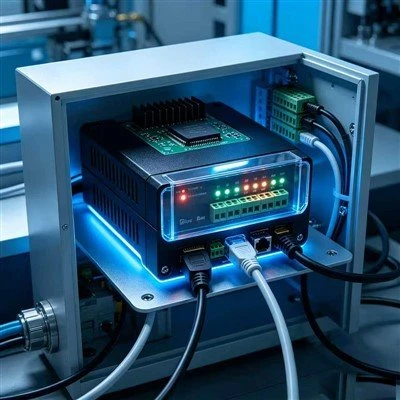
I’ve spent 12 years selling switches, running support calls with our own customers, and debugging the same issues that pop up over and over again. When someone calls us panicking, their first question is always, “Did I buy a bad switch?” Most of the time, it’s not the hardware. It’s a mistake in setup, configuration, or environment that has nothing to do with how well we build our gear. Let’s break down the most common reasons your switch isn’t working, and what you can check before you start hunting for a replacement.
First, let’s start with the basics—because the most obvious mistakes are the ones everyone skips when they’re in a rush. I’ve had a small office client call last quarter, yelling that their new switch was broken because they plugged their workstations in and no internet. When I hopped on a support call, I found they’d plugged their router’s WAN cable into a regular LAN port on the switch instead of the uplink port. That’s a rookie mistake, but it happens to everyone. Switches have different port types: uplink ports (sometimes labeled “Uplink” or marked with an “X”) are designed to connect to other network devices like routers or other switches, while regular ports are for end devices like computers, printers, or IP cameras. If you mix those up, data won’t flow between your network and the wider internet.
Then there’s power. I know, it sounds too simple, but you’d be shocked. A switch needs consistent power to run its logic and port management. If you’re using a power cord that’s frayed, or a power outlet that’s flaky (like the one behind the server rack that dies when the AC kicks on), the switch might turn on, but it could be running on unstable power that causes ports to drop, or the whole unit to reset randomly. I always tell customers to test their power first: plug a different device into the same outlet—like a laptop charger—to make sure it’s delivering consistent voltage. If the outlet works, swap out the power cord for the one that came with the switch (generic cords from big box stores often don’t supply enough power for switches with 24+ ports). Another common power issue: unmanaged switches don’t have power-saving features, but managed switches do. If you enabled a power-saving mode by mistake to save energy, some ports might disable themselves during low activity, which can look like the switch is broken.
Next up: cable problems, which are way more common than hardware failures. Every switch we build works only as well as the cables you plug into it. I’ve seen customers use old Ethernet cables from the 2000s that only support 100 Mbps, plug them into a gigabit switch, and wonder why file transfers take 10 minutes for a 1GB file. Or worse, they use Cat 5 cables for a 100-meter run between two floors, which exceeds the maximum distance for Ethernet (100 meters is the hard limit for copper cabling). If your cable is too long, the signal degrades to the point where the switch can’t parse the data—so the port will light up, but no data will move.
Then there’s damaged cables. A crimp that’s too tight, a cut in the jacket from when someone moved the server rack, or a connector that’s not clicked all the way into the port. I always recommend testing cables with a cable tester if you have one, or swapping in a spare cable from a device you know works. Even brand-new cables can be defective—we’ve had a small batch of bad cables once, and half the customers who used them called with port issues within a week. It’s not the switch, it’s the cable.
Now, moving past the basics, we get to configuration mistakes, which are the biggest headache for managed switches. Unmanaged switches (the plug-and-play ones for small offices or home networks) almost never have configuration issues—they just work. But managed switches, which let you customize VLANs, port speeds, and security settings, are where most misconfigs happen.
Let’s talk about VLANs first. VLANs (Virtual Local Area Networks) let you split a single physical network into separate logical networks for security or organization. For example, you might have a VLAN for your office workstations and a separate VLAN for your IP cameras, so cameras can’t access sensitive work data. The problem comes when you forget that a port assigned to one VLAN won’t communicate with a port assigned to another VLAN unless you set up a trunk port to carry traffic between them. I had a retail client last year who set up a new security camera system, plugged the cameras into the switch, and couldn’t access their feed from the office computers. It turned out the cameras were on VLAN 20, the workstations on VLAN 10, and they never set the uplink port to allow traffic for both VLANs. No data passed between them, so it looked like the switch was broken when it was just a missing VLAN rule.
Port speed and duplex settings are another big one. Managed switches let you set ports to auto-negotiate (the default, which works for most cases) or force a specific speed and duplex. If you force a port to 100 Mbps half-duplex on the switch, but the device you’re plugging into it is set to auto-negotiate, the two won’t agree on a connection, and the port will light up but not pass data. I’ve seen this happen with IP phones, which sometimes have fixed speed settings. It’s called a duplex mismatch, and it causes a lot of random disconnects and slow performance that people blame on the switch. The fix is simple: set both ends to auto-negotiate, or make sure they match if you have to force a setting.
Then there’s firmware issues. Even the best switches can have bugs in their firmware that cause connectivity problems. A few years back, we had a firmware update for a line of 48-port switches that caused some uplink ports to drop connections when connected to certain router models. It wasn’t a hardware flaw—just a software bug that we fixed with a small firmware update. I always tell customers to check for firmware updates for their switch, especially if they’re dealing with a new issue that started right after a power outage or a system reboot. Rebooting the switch is the first troubleshooting step we recommend, too—sometimes a temporary glitch in the software causes ports to freeze, and a 60-second power cycle clears it up.
Environment factors are another set of issues that people don’t think about, but they can kill a switch faster than anything else. Switches are designed to operate in a certain temperature range—usually 0 to 40 degrees Celsius (32 to 104 degrees Fahrenheit). If you put a switch in a closet with no ventilation, stacked on top of a server that runs hot all day, the internal temperature can climb way over that limit. The switch will start throttling performance to keep itself from overheating, or even shut down entirely to prevent damage. I’ve had customers call saying their switch was dead in the summer, only to find it was in a tiny closet with the door closed and 10 other devices stacked on top. The fix is simple: make sure your switch has at least 10 cm (4 inches) of space around it for airflow, and don’t stack other heat-generating devices on top of it.
Dust is another silent killer. If your switch is in an industrial environment, or a home office that’s never had the vents cleaned, dust can clog the internal fans and heat sinks, leading to overheating. It can also build up on the port connectors, preventing a good connection between your cable and the switch. We recommend cleaning switch vents every 6 months with compressed air, and checking ports for dust if you’re having connectivity issues.
Wait, there’s one more big issue that people don’t talk about enough: compatibility. Even if two devices are both Ethernet-compliant, some vendors have proprietary settings that can cause issues. For example, some older switches from other brands have issues connecting to modern IP cameras that use 802.1X port-based security, or some routers don’t play nice with certain uplink port configurations. I always tell customers that if you’re mixing brands, test a small setup first—sometimes a quick firmware update from both vendors fixes compatibility issues, but sometimes you might need to adjust your settings.
Now, let’s get to the part where someone says, “Okay, I checked all these, and my switch is still not working—should I buy a new one?” As a switch supplier, I’ll be honest: most of the time, the answer is no. But if you’ve tried all the steps I outlined—checked power, cables, ports, configuration, environment, and firmware—and the switch still isn’t working, then it’s time to consider hardware failure. Switches do get damaged: power surges from storms, physical damage from moving, or manufacturing defects (rare, but they happen). If that’s the case, we offer a 3-year warranty on all our switches, so you can reach out to our support team for a replacement if it’s still under warranty.
But before you jump to buying a new switch, let’s make sure you’re picking the right one, too. A lot of people buy a switch that’s too small for their needs: if you have 25 devices on your network, a 8-port switch will never work well, because it doesn’t have enough ports and the backplane speed is too slow. Or a switch that’s managed when you just need unmanaged, which adds unnecessary complexity. If you’re upgrading, tell us about your number of devices, your network size, and what you need it to do, and we can help you pick the right switch that fits your setup.
At the end of the day, a network switch is just a piece of hardware that works best when you set it up right, keep it in a good environment, and troubleshoot the small stuff first. I’ve spent years talking to IT teams who’ve pulled their hair out over a mislabeled uplink port or a frayed Cat 5 cable, and it always turns out the issue was never the switch itself. If you’re still stuck and need help troubleshooting, or you’re looking to replace your old switch with something reliable, feel free to reach out to our team to discuss your needs. We’re here to help you get your network back up and running smoothly, no matter what the issue is.
Industry Specific Switch References
- Ethernet Standards Institute. (2022). Copper Cabling Distance and Performance Guidelines.
- Network Device Industry Association. (2023). Managed Switch Configuration Best Practices.
- IT Infrastructure Library (ITIL). (2021). Troubleshooting Network Hardware and Connectivity.
Liaoning Yifang Wisdom Technology Group Co., Ltd.
Liaoning Yifang Wisdom Technology Group Co., Ltd. is one of the most professional network switch manufacturers and suppliers in China, also supports customized service. We warmly welcome you to wholesale the newest network switch in stock here from our factory. If you have any enquiry about quotation, please feel free to email us.
Address: Minmetals Corporation Building Yingkou Liaoning China
E-mail: LN-YF@hotmail.com
WebSite: https://www.yifangwisdom.com/
